
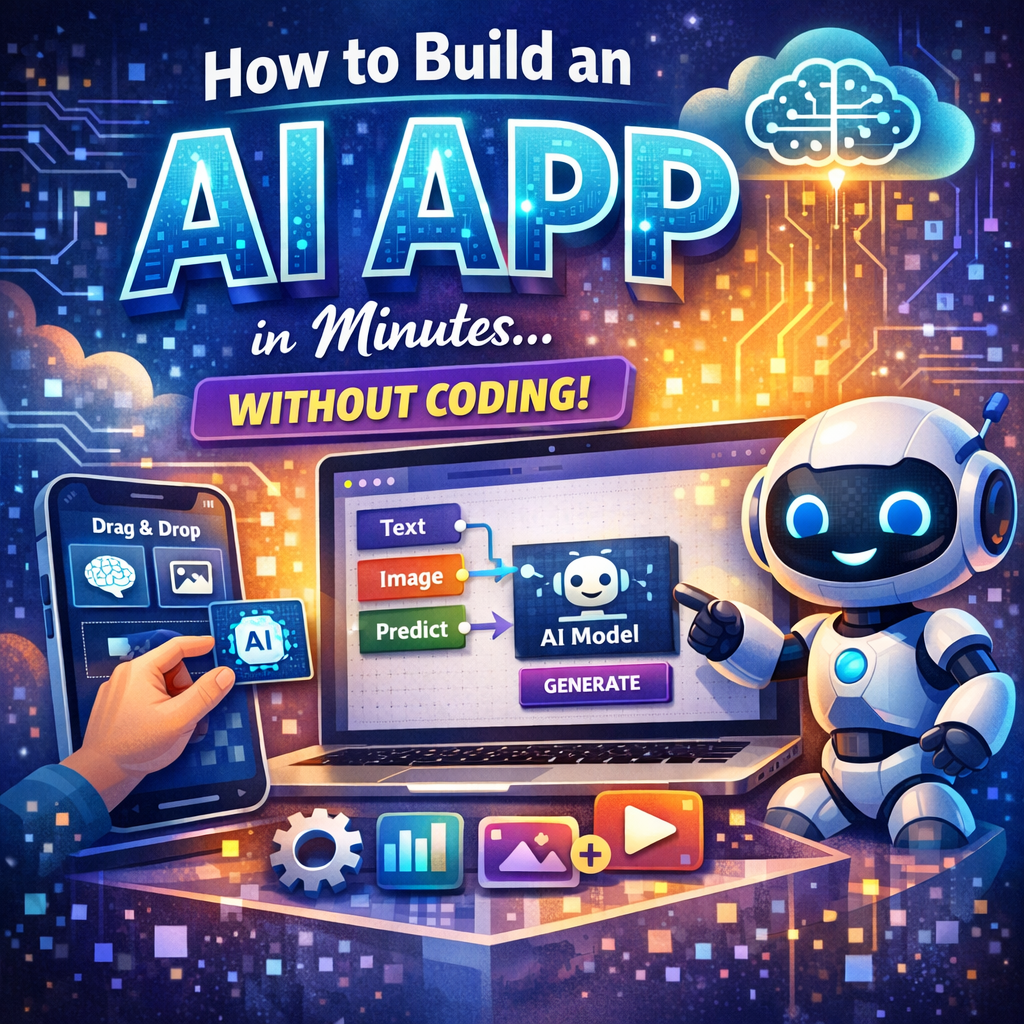
How to Build an AI App in Minutes Without Coding
How to Build an AI App in Minutes Without Writing Code
Building an AI app used to mean hiring developers, learning to code, and spending weeks on a prototype. Today, no-code platforms let you create a simple AI-powered tool by describing what it should do, connecting a few building blocks, and testing the result.
You may not finish a polished, production-ready product in five minutes. But you can build a useful prototype surprisingly quickly—and improve it as you learn what users need. Here’s a practical way to get started.

1. Choose One Specific Problem
The best first AI app solves a small, clear problem. Avoid starting with a broad idea like “an AI assistant for everyone.” Instead, focus on one task and one type of user.
For example, you could build:

- A tool that turns meeting notes into action items
- A product description generator for an online shop
- A chatbot that answers questions about a set of documents
- A form that summarizes customer feedback
- A study helper that creates quizzes from class notes
Write down what a user provides, what the app does, and what the user receives. A simple outline might be: “A shop owner enters product details; the app generates three short descriptions in a friendly tone.”

This definition will guide every choice that follows.
2. Pick a No-Code AI Platform
No-code AI app builders combine visual interfaces with AI models. Depending on the platform, you can create a chatbot, form-based tool, workflow, or lightweight web app without writing code.
When comparing tools, check whether they offer:
- A visual app or workflow builder
- Access to an AI model
- A way to add your own instructions or reference documents
- User input fields and output displays
- Testing and publishing features
- Pricing that fits your expected usage
Some platforms are designed for beginners, while others offer more control over data, integrations, and app design. Start with the simplest option that meets your needs. You can always move to a more advanced platform later.
3. Build the Basic User Experience
Create only the screens or fields your app needs. For a first version, a single page is often enough.
A product description generator, for instance, might include:
- A field for the product name
- A field for its features
- A tone selector, such as “playful” or “professional”
- A button to generate descriptions
- A section that displays the result
Use clear labels and brief instructions. Instead of asking users to “enter information,” tell them exactly what to provide: “List three benefits and any important product details.”
A focused interface makes your app easier to use and helps the AI produce better results.
4. Give the AI Clear Instructions
The AI’s instructions—often called a prompt or system prompt—describe its role, task, and boundaries. A vague prompt usually leads to inconsistent answers. A useful one specifies what the app should do and how the output should look.
For example:
You write concise product descriptions for small online shops. Use the product name, features, and tone provided by the user. Return three options, each under 50 words. Do not invent specifications or make unsupported claims.
If the platform supports variables, connect the prompt to the fields in your app. You can also tell the AI what to do when information is missing, such as asking for clarification rather than guessing.
5. Add Reference Material If Needed
Some AI apps work best with trusted information. A support chatbot, for example, should answer questions using a company’s policies rather than relying on general knowledge.
If your platform supports document uploads or a knowledge base, add relevant, current files. Keep documents organized and remove outdated versions. Then instruct the AI to use those sources and say when it cannot find an answer.
Be careful not to upload sensitive personal or business information unless you understand the platform’s privacy and data-handling policies.
6. Test Before You Publish
Try several realistic inputs, including incomplete, unusual, and confusing ones. Check whether the app follows instructions, gives useful answers, and avoids making things up.
Ask a few potential users to test it, too. Watch for moments when they hesitate or misunderstand a field. Small changes to the wording, layout, or AI instructions can make a noticeable difference.
Before sharing the app, confirm that:
- The main task works from start to finish
- Outputs are clear and appropriately formatted
- Users know what information to enter
- The app handles errors or missing details gracefully
- Any privacy notice or usage limit is easy to find
7. Publish a Prototype and Improve It
Once the core experience works, use your platform’s publishing option to share a link or embed the app on a website. Begin with a small group of users. Their feedback can reveal whether the tool genuinely saves time or needs a different approach.
Building an AI app without code is fastest when you keep the first version simple. Start with one problem, one audience, and one useful outcome. A no-code builder can help you turn that idea into a working prototype in minutes; testing and thoughtful improvements are what make it valuable.